
Subtitles can make video content easier to understand, especially when viewers watch movies or shows in a different language. They can also help viewers follow conversations when the audio is unclear. If you are using NetMirror APK, you may want to check whether subtitle options are available while playing a video.
In this guide, we explain how to look for subtitle settings, select a language when supported, and troubleshoot common subtitle problems on Android devices.
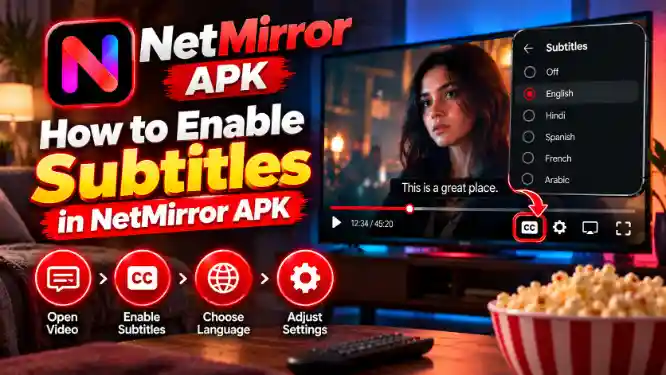
Why Are Subtitles Useful?
Subtitles display spoken dialogue as text on the screen. Depending on the video and the available subtitle options, they may help viewers understand different accents, follow conversations, or watch content without increasing the volume.
However, subtitle availability can vary by video, application version, and playback source. Not every title will necessarily offer subtitles in every language.
1: Open NetMirror APK
Open NetMirror APK on your Android device if it is already installed. Navigate to the video you want to watch and start playback.
Before changing any settings, check whether the video plays correctly. If the application does not open or the video fails to load, resolve that issue first.
2: Check the Video Player Controls
While the video is playing, tap the screen to display the playback controls. Look for a subtitle icon, a captions option, or a settings menu.
The exact location and appearance of these controls may differ between versions and playback interfaces.
If you cannot find a subtitle option, it may mean that the selected video or player does not provide subtitle support. Avoid assuming that every video includes this feature.
3: Select an Available Subtitle Language
If the player offers a subtitle menu, open it and review the available options.
Choose your preferred language from the list. For example, you might select English if it is available for the video.
After making your selection, return to playback and check whether the subtitles appear correctly. Some players may require you to pause and resume the video before the changes take effect.
4: Adjust Subtitle Appearance
Some video players provide additional subtitle settings. These may include text size, colour, background, or display position.
If these options are available, adjust them according to your preference. Larger text may be easier to read on a phone, while a contrasting background can improve visibility against bright scenes.
Keep in mind that these settings depend on the player’s actual capabilities and may not be available in every version.
Common Subtitle Problems and Solutions
Subtitles Are Not Showing
First, check whether subtitles are available for the selected video. Open the player controls and review the subtitle menu again.
If the option is missing, the video or player may not support subtitles.
The Wrong Language Appears
Reopen the subtitle menu and select another available language. If your preferred language is not listed, it may not be provided for that title.
Subtitles Are Out of Sync
Dialogue and subtitles may sometimes appear at different times. If the player includes a subtitle timing adjustment, use it to correct the delay. Otherwise, try restarting playback.
Subtitle Text Is Difficult to Read
Check whether the player provides text size, colour, or background settings. You can also adjust your device’s display settings where supported.
The Subtitle Menu Is Missing
Not all playback interfaces include subtitle controls. Check the available player options and any reliable documentation for your application version.
Safety Tips for Subtitle Files
If you use an external subtitle file, obtain it from a trustworthy source and check the file before opening it. Avoid downloading suspicious files or installing additional applications just to access subtitles.
Do not grant unnecessary permissions to an application that claims to provide subtitle support.
Final Thoughts
Enabling subtitles in NetMirror APK depends on whether the selected video and playback interface support this feature. Start by opening the video controls, checking the subtitle menu, and selecting a language if one is available.
If subtitles do not appear, check the available options and restart playback. These simple steps can help you understand the subtitle settings without assuming that every feature is supported on every device.